WordPress Image Optimization: WebP, AVIF and Lazy Loading
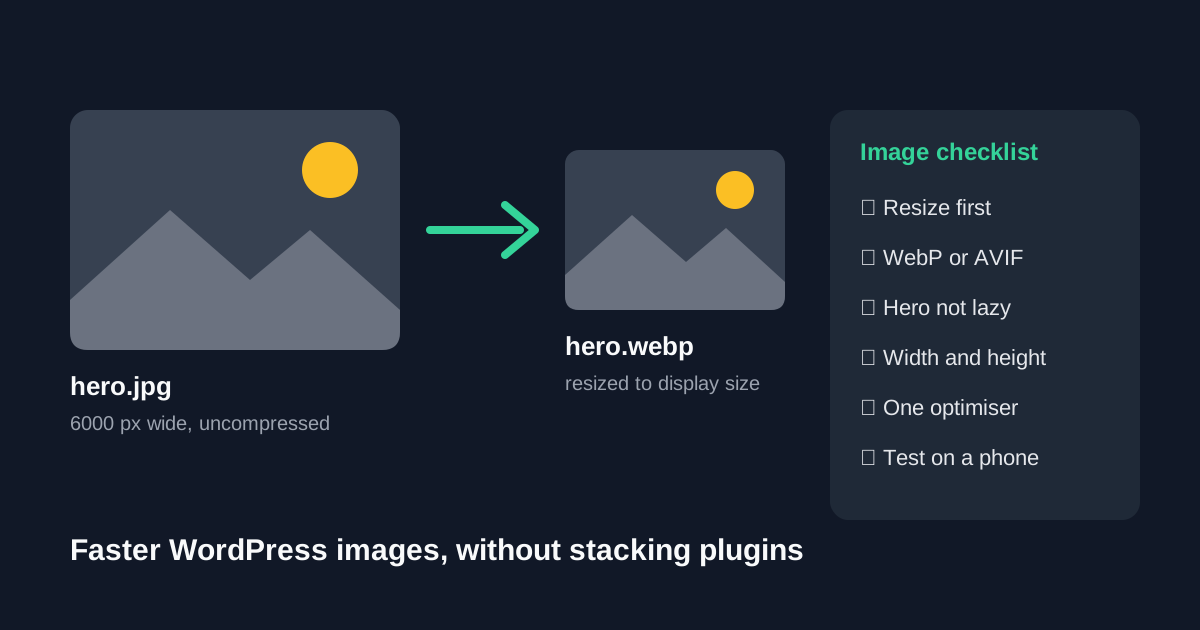
Images are usually the heaviest part of a WordPress page, and the first thing a new theme or page builder makes heavier. A hero photo uploaded straight from a phone can outweigh the rest of the page put together.
The good news is that WordPress now does a lot of image work on its own. Before you buy an optimisation plugin, or a theme that promises "lightning-fast images", it helps to know what core WordPress already handles, what your theme controls, and what a plugin genuinely adds.
Direct Answer
Resize images to the largest size your theme actually displays, compress them, and use WebP or AVIF where your host supports it. Let WordPress handle lazy loading and the high-priority hint for the main image, and make sure your theme does not override that for the hero. Add an optimisation plugin when you need to compress or convert an existing media library in bulk, or to serve modern formats automatically. Run only one image optimisation plugin and one lazy-loading method at a time.
1. Know What WordPress Core Already Does
Many sites install plugins for features WordPress added years ago. Check your WordPress version first, then cross off anything core already covers:
- Lazy loading (WordPress 5.5). WordPress adds the browser's native
loading="lazy"attribute to images that have width and height attributes, so images further down the page wait until the visitor scrolls towards them. - Smarter lazy loading (5.9 to 6.3). Later releases stopped lazy-loading images that appear in the first screen, because delaying the main image makes the page feel slower. By 6.3 the remaining known issues in that logic were fixed.
- Fetch priority (WordPress 6.3). WordPress adds
fetchpriority="high"to the image it judges most likely to be the largest element on screen. The WordPress core team reported that this typically improves Largest Contentful Paint by 5 to 10 percent. - WebP uploads (WordPress 5.8). You can upload and use WebP images like JPEGs, as long as your hosting supports the format. The release note describes WebP files as around 30 percent smaller than JPEG or PNG equivalents on average.
- AVIF uploads (WordPress 6.5). AVIF support followed, again depending on the image library on your server. The core team says AVIF images can be up to 50 percent smaller than JPEGs at the same quality.
- Responsive images. WordPress generates several sizes for each upload and adds
srcsetandsizes, so phones can download a smaller file than desktops.
If your site is on a current WordPress release, a plugin that only adds lazy loading duplicates work core already does, and can even undo core's careful handling of the first image.
2. Check What Your Theme Controls
The theme decides which image sizes exist, how large the hero and featured images are displayed, and whether images go through WordPress's normal output. These details matter more than most "speed" claims on a theme demo page.
Before choosing or keeping a theme, check:
- The hero or header image. Is it a normal image element, or a CSS background? Background images do not get
srcset, lazy-loading rules or the fetch priority hint, so the theme must handle them itself. - Sliders and carousels. Many load every slide at full size on page load. One strong static image is often faster and clearer.
- Registered image sizes. Some themes register many custom sizes. Each upload then creates many files, which fills storage and slows bulk optimisation.
- JavaScript lazy loading. Older themes and builders sometimes add their own script-based lazy loading. Combined with core lazy loading, that can delay the main image or hide images from visitors whose scripts fail.
- Width and height attributes. Images without them cause layout shift as they load, and core will not lazy-load them.
Our guide on how to choose a website theme covers the wider checks, and the themes catalogue lists the designs we can discuss with you.
3. Prepare Images Before Upload
The cheapest optimisation happens before a file reaches WordPress.
- Resize to the display size. If your content column is 800 pixels wide, a 6000-pixel camera photo wastes bandwidth and server processing. Upload at roughly twice the display width for sharp results on high-density screens, not ten times.
- Pick the right format. Photos suit WebP, AVIF or JPEG. Logos and icons with flat colours often work best as SVG (from a trusted source) or PNG.
- Compress once, carefully. Check the result at full size. Repeatedly compressing an already-compressed file quickly adds visible artefacts.
- Name and describe it. Use a descriptive file name and write alt text that describes the image for someone who cannot see it.
4. Decide Whether You Need An Optimisation Plugin
An image optimisation plugin earns its place when it does work that is slow or impossible by hand. Typical reasons include:
- compressing a media library that already holds thousands of unoptimised images;
- converting existing uploads to WebP or AVIF and serving them with a fallback for browsers or servers that need it;
- automatically compressing every new upload so editors do not have to remember;
- resizing oversized originals on upload.
Some popular optimisation plugins process images on the developer's servers and limit usage by plan or monthly quota, while others process on your own server. Before paying, check where processing happens, what the quota covers, whether originals are kept so you can restore them, and what happens to converted images if you deactivate the plugin.
If you are buying a premium plugin licence, the same questions apply as for any commercial plugin: who owns the licence, how updates arrive and how many sites it covers. Our plugin licence key checklist walks through them. ThemeHub's catalogue entries are reference listings rather than instant licence sales, so if you want help sourcing a specific optimisation plugin or theme, ask our support team to confirm the exact product, licence and update terms before you pay.
5. Avoid Stacking Tools That Do The Same Job
Speed problems often come from too many helpers rather than too few. Common conflicts:
- two image optimisation plugins compressing the same files;
- a caching plugin, a theme option and an image plugin all adding lazy loading;
- a CDN converting formats while a plugin also rewrites image URLs;
- a page builder generating its own image sizes alongside the theme's.
Pick one tool for each job and switch the overlapping feature off everywhere else. Then clear caches and test again.
6. Test The Result The Same Way Each Time
Test the same three pages after every change: the home page, a typical blog post and your busiest product or service page.
- Open each page in a private window on a phone-sized screen.
- Run a lab test such as PageSpeed Insights and note the Largest Contentful Paint element. On most themes it should be the hero or featured image.
- Confirm that image is not marked
loading="lazy"and, on WordPress 6.3 or later, carriesfetchpriority="high". - Check that images further down the page are lazy-loaded and served in the format you expect.
- Scroll the whole page to make sure nothing is missing, stretched or blurry.
Keep a short note of each change and its result. If a later plugin or theme update makes images slower, that note shows you exactly what changed.
Image Checklist Before You Publish
- WordPress is on a current release, so core lazy loading, fetch priority, WebP and AVIF support are available.
- Your host's image library supports the modern formats you plan to use.
- Uploads are resized close to their display size and compressed once.
- The hero image is a real image element, not lazy-loaded, with width and height set.
- Only one image optimisation plugin and one lazy-loading method are active.
- Every meaningful image has descriptive alt text.
- Three key pages have been tested on a phone-sized screen after the change.
Frequently Asked Questions
Do I still need a lazy-loading plugin?
On current WordPress releases, usually not. Core adds native lazy loading and avoids it for images in the first screen. Remove extra lazy-loading features unless you have a specific need core does not cover.
Should I convert every image to AVIF?
Not automatically. AVIF can be much smaller than JPEG, but your server must support it and encoding can be slower. WebP is a safe default for photos; test AVIF on a few key images first.
Why is my hero image still slow after optimisation?
Check whether it is a CSS background, whether a script lazy-loads it, and whether the file is far larger than its display size. Those three causes are more common than poor compression.
Will an image plugin break my site if I remove it?
It depends on the plugin. Some rewrite image URLs or store converted copies separately. Read its documentation on deactivation and keep a backup before removing it.
Can ThemeHub supply a premium optimisation plugin?
Catalogue listings are for reference. Contact support with the exact plugin and edition you need, and we will confirm availability, the vendor licence and update terms before any payment.
Sources
- WordPress Core, Lazy-loading images in 5.5.
- WordPress Core, Image performance enhancements in WordPress 6.3.
- WordPress Core, WordPress 5.8 adds WebP support.
- WordPress Core, WordPress 6.5 adds AVIF support.