Theme Demo Performance Checklist: 20-Minute Speed Proof Before You Buy
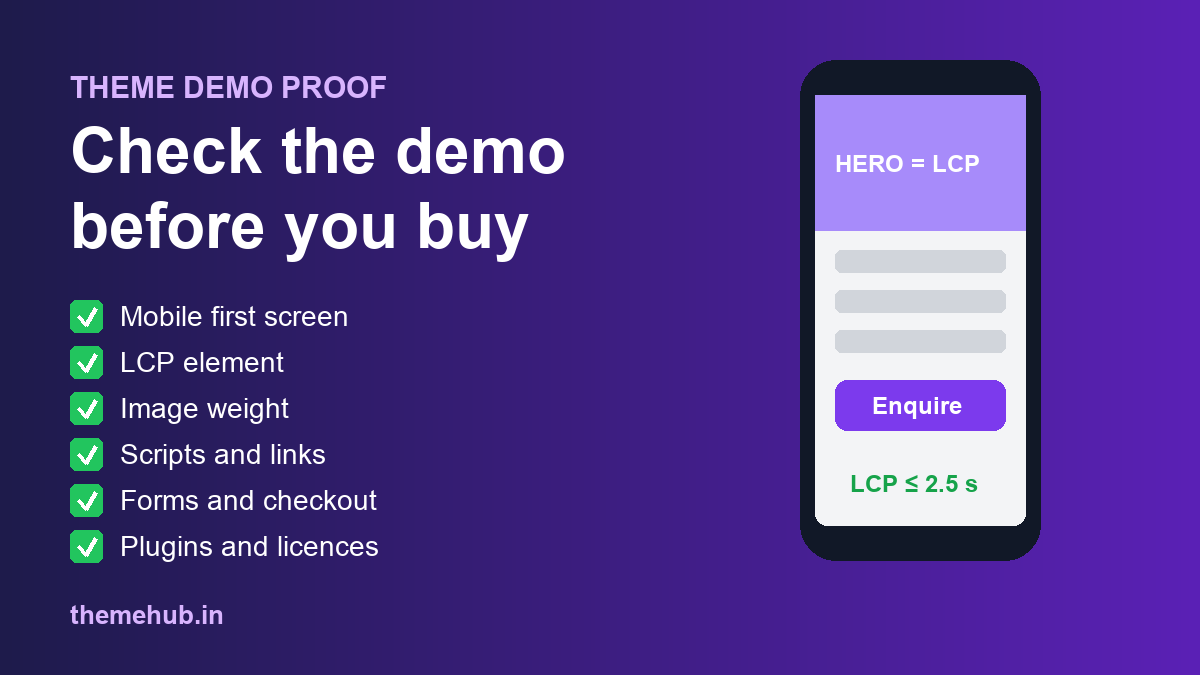
A theme demo is a sales page. It is built with perfect photos, short headlines and exactly the plugins that make it look good, then usually viewed on a fast laptop. Your real site will run on mid-range phones, with your own images and your own content. That gap is where most "this theme looked great" regrets come from.
This checklist is a 20-minute routine for checking a theme demo before you buy or install it. You do not need to be a developer. You need a phone, a browser and the free PageSpeed Insights tool, plus a willingness to write down what you see.
The Short Answer
Open the demo on a phone first, find the biggest thing on the first screen (that is usually what decides your Largest Contentful Paint), run the demo URL through PageSpeed Insights, imagine your own photos in every image slot, click through the paths that make you money, check keyboard and contrast basics, and list every plugin the demo needs. Then confirm licence, updates and setup with the seller before you pay. If a theme fails on mobile or hides essential content behind scripts, walk away.
1. Start on a Real Phone, Not the Desktop
Google uses the mobile version of a page for indexing and ranking, as its mobile-first indexing guidance explains, and most small business visitors in India arrive on a phone. So judge the demo there first.
On the first screen, ask:
- Can you tell what the business does and see the main button without scrolling?
- Does the menu open cleanly, and can you close it again?
- Is body text readable without zooming, and are buttons big enough to tap?
- Do sticky bars, cookie banners or popups cover the content?
- Are the WhatsApp, call or enquiry buttons easy to reach?
Take three screenshots: the first screen, the open menu and a form. You will compare them with the other themes on your shortlist.
2. Find the LCP Element and Test It
Largest Contentful Paint (LCP) measures when the biggest image or text block in the first viewport finishes rendering. web.dev recommends an LCP of 2.5 seconds or less for at least 75% of page visits. In themes, the LCP element is usually the hero image, a full-screen slider or a large headline in a custom web font.
Paste the demo URL into PageSpeed Insights and look at the mobile result. Note the LCP time and which element it names. Then look for the usual theme culprits that web.dev's LCP optimisation guide warns about:
- a huge hero image or background video;
- an auto-playing slider where the first slide waits for JavaScript;
- a hero image that is lazy-loaded, which delays the very image that should arrive first;
- render-blocking CSS and font files loading before anything appears.
Treat the score as a warning light, not a verdict. Demo servers are often faster or slower than your hosting will be, and the score changes from run to run. A demo that already struggles on mobile, though, will rarely get faster once you add your content and plugins.
3. Picture Your Own Images in Every Slot
Demos use matched stock photos with identical crops. Real businesses upload team photos, product shots, clinic interiors, screenshots and phone pictures. Check whether image areas are fixed-ratio or flexible, whether portrait photos will be cropped awkwardly, and whether the layout depends on wide background images that you do not have.
Also check file weight. Right-click the hero image, open it in a new tab and see how large it is. If the demo ships 1 MB-plus images, you will need a compression workflow from day one. Our WordPress image optimisation checklist covers formats, sizes and lazy-loading rules.
4. Check What Depends on JavaScript
Sliders, mega menus, animated counters, tabs, filters and live search all run on JavaScript. Google can render JavaScript, but its JavaScript SEO basics guide still recommends real links and content that does not rely on fragile interactions. For a buyer the test is simple:
- Is the main text visible without clicking tabs or accordions?
- Are menu items real links you can open in a new tab?
- Does the page jump around while it loads?
- Does the demo feel sluggish when you tap a menu or filter?
Heavy animation is a design choice, but it should be a choice you make, not one you discover after launch.
5. Click Through the Paths That Make You Money
A good homepage is not enough. Walk the paths your customers will use: home to service page to enquiry form, product to cart to checkout, blog post to call-to-action, and footer links to privacy and terms. Submit a demo form if it allows it and note what happens. Broken links or dead-end pages in a demo are a sign of how carefully the theme is maintained.
6. Run Basic Accessibility Checks
Press Tab repeatedly on the demo. You should see a visible focus outline move through the menu, buttons and form fields in a sensible order. Check that text has enough contrast against backgrounds, that form fields have labels rather than placeholder text only, and that no important text is baked into images.
On WordPress.org, only themes that pass a dedicated accessibility review may use the accessibility-ready tag, as the Theme Review Handbook explains. That tag is a useful signal, but it covers the theme, not your final content, colours and plugins, so test your own setup too.
7. List Every Plugin and Licence the Demo Needs
This is where budgets go wrong. Many premium demos are built with a page builder, a slider plugin, a forms plugin and sometimes a WooCommerce extension, each with its own licence. Before you pay, write down:
- which plugins the demo uses, and which are bundled versus sold separately;
- whether updates and support are included, and for how long;
- what happens to the site if a bundled plugin licence lapses;
- whether demo images and fonts are licensed for your use, or only for the preview;
- who does the setup and demo import, and how long delivery takes.
Our guide to checking a premium plugin licence key before buying explains what a genuine licence should include.
8. Check That You Can Actually Edit It
A fast theme that only a developer can update will cost you every month. Ask whether common sections are editable blocks or hard-coded, whether you can reuse templates for new service pages, and whether the person who will maintain the site is comfortable with the editor or page builder it relies on.
9. Decide: Buy, Ask or Reject
End with one of three labels for each theme:
- Buy: mobile layout, speed, paths and licences all check out.
- Ask first: the design fits but licence, plugin or setup questions are open, or the demo is heavy and you need to know how much work trimming it will take.
- Reject: poor mobile layout, key content hidden behind scripts, weak accessibility, or licences and support that nobody can confirm.
A One-Page Proof Sheet
| Check | What to record |
|---|---|
| Mobile first screen | Screenshot, main button visible, menu works |
| LCP | PageSpeed mobile LCP time and the element it names |
| Images | Hero file size, crop fit for your own photos |
| JavaScript | Content visible without interaction, real links, no jumping |
| Money paths | Enquiry and checkout flows tested |
| Accessibility | Focus outline, contrast, form labels |
| Plugins and licences | Bundled vs separate, updates, support period |
| Editing | Who maintains it and with which editor |
| Decision | Buy, ask first or reject |
Fill one sheet per theme and the comparison becomes obvious. If you are still building a shortlist, start with our roundup of the best WordPress themes for 2026.
Buying Through ThemeHub
If a theme or readymade design on ThemeHub lands in your "ask first" column, send the item name and your questions through our contact page before you pay. We can tell you what is included, what licence covers it and what setup involves. No theme can guarantee a perfect speed score or rankings, but a checked demo removes the surprises.
FAQ
How do I check a WordPress theme demo before buying?
Open it on a phone, run the demo URL through PageSpeed Insights, check the first screen, menu and forms, imagine your own images in it, test the key customer paths, try keyboard navigation, and list every plugin and licence it depends on.
What is a good LCP for a theme demo?
web.dev recommends 2.5 seconds or less. Treat a single test as a rough signal, because demo hosting and network conditions vary, but be wary of demos that are well above that on mobile.
Should a PageSpeed score decide which theme I buy?
No. It is one input. Mobile usability, content fit, editing, licences and support matter just as much, and a lightweight theme can still be slowed down by heavy plugins and images.
Does "accessibility-ready" mean my site will be compliant?
No. It means the theme passed WordPress.org's accessibility review. Your content, colours, forms and plugins still need testing.
Are the plugins shown in a demo included with the theme?
Not always. Some are bundled, some need separate licences and some bundled copies do not include direct updates. Confirm this with the seller before paying.