Theme Update Compatibility Checklist: Backup, Child Theme, Rollback
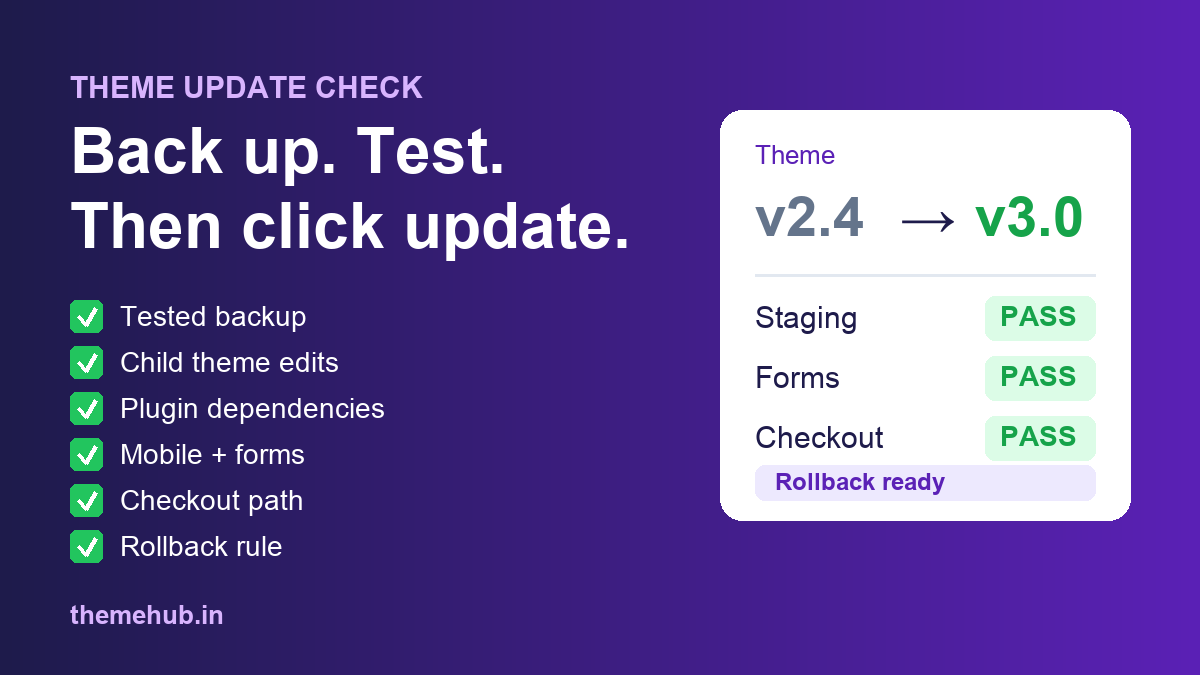
A theme update can fix bugs, close security holes and add support for the latest WordPress features. It can also quietly move your call-to-action button, break the enquiry form, wipe custom CSS or make the mobile menu stop opening. On a business site, that is not a design problem. It is lost leads and lost orders, often noticed days later.
This checklist is for the moment before you click "Update" on a live business website, or before you swap one theme for another. You do not need to be a developer to use it. You need about an hour, a backup you have actually tested, and a short list of the pages that make you money.
The Short Answer
Before updating a theme, record what is running now, make and test a backup, check whether your custom edits live in a child theme or directly in the parent theme, list the plugins the theme depends on, and write a rollback rule. Update on staging if you can. Then test mobile first, every form, the checkout path, SEO basics, keyboard access and how quickly the page responds to taps. Approve, fix or roll back based on what you saw, not on how the homepage looks at a glance.
Why a "Small" Theme Update Is Not Small
A WordPress site is a stack of moving parts: core, the theme, plugins, a page builder, custom CSS, forms, checkout, tracking scripts, a consent banner and the hosting setup. The theme touches almost all of them, because it controls templates, layout, styles and often bundled features such as sliders or mega menus.
The WordPress Advanced Administration Handbook starts its upgrade guidance with one instruction: back up your website first, so you can restore it if something goes wrong. When it discusses moving many plugins forward, it advises doing it one by one and checking warnings and errors as you go. The same habit works for themes. Change one thing, look, then move on.
1. Record the Current State
Write down, in one place: the theme name and version, the parent theme if you use a child theme, the WordPress and PHP versions, the page builder, the active plugins, where custom CSS and code snippets live, and who is responsible for the site. Take full-page screenshots of the homepage, one service or product page, the contact page and the checkout on both phone and desktop.
This baseline is what you compare against later. Without it, every odd spacing or missing button turns into "was it always like that?"
2. Make a Backup and Prove You Can Restore It
You need the files (theme, plugins, uploads) and the database. Confirm where the backup is stored, who can restore it, and how long a restore takes. If you have never restored from that backup, restore it once to a staging copy. A backup nobody knows how to use is not a recovery plan.
Then write the rollback rule before you start, while you are calm. For example: "If checkout, the enquiry form, mobile navigation or the main call-to-action breaks and cannot be fixed within 30 minutes, restore the previous version."
Premium themes and plugins usually need an active licence to receive updates at all. If an update is not showing up, our guide on checking premium plugin licence keys explains what to confirm with the seller.
3. Check the Child Theme and Custom Edits
This is where most theme-update damage comes from. The WordPress Theme Handbook explains that a child theme lets you customise a parent theme without editing the parent's files, so the parent can still be updated without losing those changes. The reverse is also true: anything edited directly inside the parent theme can be overwritten by an update.
Ask these questions:
- Is a child theme active, or is the parent theme running on its own?
- Were any template files or functions.php edited inside the parent theme?
- Is custom CSS stored in the Customizer, the child theme or a plugin?
- Are tracking codes, chat widgets or WhatsApp buttons hard-coded into theme files?
If custom work lives in the parent theme, stop. Move it to a child theme or a snippets plugin first, then update.
4. List the Plugins the Theme Depends On
Many themes rely on a page builder, a slider, a form plugin, WooCommerce templates or a bundled "companion" plugin. Read the theme's changelog for the new version and look for required plugin versions, removed features or template changes. Check each dependent plugin's own changelog for compatibility notes.
WooCommerce sites deserve extra care. If the theme overrides WooCommerce templates and those overrides are out of date, the shop can show broken layouts after either the theme or WooCommerce updates. The WooCommerce status screen lists outdated template overrides; check it before and after.
5. Update on Staging if You Can
Many hosts offer a one-click staging copy. Use it. Update the theme there, run the tests below, and only then repeat on the live site. If you have no staging, choose a quiet hour, put the backup and rollback rule in front of you, and update with someone available to test straight away.
6. Test Mobile First
Google's mobile-first indexing guidance recommends responsive design, where the same HTML is served on the same URL and the layout adapts to the screen. For a business, the practical lesson is simple: if the mobile version is broken, the site is broken, whatever the desktop looks like.
On a real phone, check that the menu opens and closes, the hero text is readable, images crop sensibly, the main button is visible without hunting, phone and WhatsApp links open the right app, sticky bars do not cover content and nothing scrolls sideways.
7. Submit Every Form and Walk Every Money Path
A form that looks fine can still fail on submit. Send a real test through each form: contact, quote, booking, newsletter and login. Confirm the success message, the email notification to the owner, the thank-you page and any CRM or spreadsheet capture.
For shops and booking sites, place a test order or use the payment gateway's test mode. Check the product page, cart, coupon field, checkout fields, payment options, confirmation page and the customer email. Do the whole path on a phone.
8. Check SEO Basics and Accessibility
Themes often control headings, breadcrumbs and some schema output. After the update, open a few key pages and confirm there is still one H1, the title and meta description are unchanged, the canonical URL is stable, there is no accidental noindex, breadcrumbs still work and blog cards link correctly.
The WordPress Theme Handbook's accessibility guidance covers basics such as colour contrast, keyboard navigation, visible focus and skip links. Tab through the homepage with the keyboard, check that you can see where focus is, and make sure form fields still have labels. A theme can be well structured without being fully compliant, so do not claim more than you have tested.
9. Feel How Fast the Page Responds
web.dev describes Interaction to Next Paint (INP) as a metric that assesses how quickly a page responds to clicks, taps and key presses across a visit. New sliders, animations, mega menus and builder widgets are common reasons a site gets slower to respond after an update.
Tap the menu, open an accordion, add a product to the cart and type into a form on a mid-range phone. If the page hesitates where it did not before, compare with your baseline and run PageSpeed Insights on the same URL. Our theme demo performance checklist walks through the same speed checks you would use before buying a theme, and they work just as well after an update. If the problem is heavy images rather than scripts, see the WordPress image optimization checklist.
10. Approve, Fix or Roll Back
| Decision | When it fits |
|---|---|
| Approve | Forms submit, checkout works, mobile menu and buttons work, SEO basics are unchanged, no visible breakage on key pages. |
| Fix | The issue is small and isolated (a spacing glitch, a colour change) and customers can still enquire and buy. |
| Roll back | Checkout, a lead form or mobile navigation fails, custom code has disappeared, or the site is clearly slower and nobody can fix it quickly. |
Write down which you chose and why. Next time, that note is your starting point.
The One-Page Checklist
- Current theme, version, parent/child, plugins and screenshots recorded
- Backup made and restore tested; rollback rule written
- Custom edits confirmed to live outside the parent theme
- Theme and plugin changelogs read; template overrides checked
- Update done on staging first, or in a quiet hour with a tester ready
- Mobile menu, buttons, phone and WhatsApp links tested on a phone
- Every form submitted and notifications received
- Checkout or booking path completed end to end
- One H1, titles, canonicals, noindex and breadcrumbs checked
- Keyboard, focus and labels checked; tap response felt on mobile
- Approve, fix or roll back decision recorded
If you are replacing a theme rather than updating it, the same list applies, plus our guide on how to choose a website theme. You can browse current options in the ThemeHub theme catalogue, and if you need help confirming a theme's licence, setup or plugin requirements before you switch, contact ThemeHub support.
FAQ
What should I check before updating a WordPress theme?
A tested backup, a written rollback rule, whether custom edits sit in a child theme, the plugins the theme depends on, and the changelog. After updating, test mobile layout, forms, checkout, SEO basics, accessibility basics and responsiveness.
Can a theme update break my website?
Yes. It can change layouts, menus, forms, checkout templates and scripts, and it can overwrite edits made directly in the parent theme. That is why key paths need testing after every update.
Why does a child theme matter for updates?
A child theme keeps your customisations separate from the parent theme, so the parent can be updated without losing them. Edits made inside the parent theme can be overwritten.
Do I really need staging?
For a site that takes orders or leads, staging is the safest option. Without it, a tested backup, a quiet time slot and an immediate test run become essential.
Should I turn on automatic theme updates?
For a simple site with no parent-theme edits and a reliable backup, automatic updates can be fine. For shops and lead-driven sites with custom work, manual updates with this checklist are safer.
Sources
- WordPress Advanced Administration Handbook: Upgrading WordPress
- WordPress Theme Handbook: Child Themes
- WordPress Theme Handbook: Accessibility
- Google Search Central: Mobile-first indexing best practices
- web.dev: Interaction to Next Paint (INP)